> ## Documentation Index
> Fetch the complete documentation index at: https://www.usenotra.com/docs/llms.txt
> Use this file to discover all available pages before exploring further.
# MCP Server
> Connect the hosted Notra MCP server to Claude, Cursor, ChatGPT, and other AI tools with OAuth or an API key, and bring your own MCP servers into Notra.
Notra runs a hosted MCP server at `https://mcp.usenotra.com/mcp` (streamable HTTP) so AI agents can work with your workspace directly. Connected agents can manage brand identities, generate and edit content, connect integrations, manage schedules, chats and skills, and run the full GEO surface: projects, prompts, competitors, scans, visibility, content briefs, agent readiness, and AI traffic.
This page covers two different things:
* **Notra's MCP server**: give an AI client (Claude, Cursor, ChatGPT, Codex, and others) access to Notra.
* **External MCP servers**: give Notra's chat agent access to your own tools by connecting servers under **Integrations > MCP Servers**.
## Authentication
The server accepts bearer credentials in the `Authorization` header. Two kinds work: an OAuth access token, or a Notra API key.
Use OAuth when a person is in the loop: Claude, Cursor, ChatGPT connectors, and any client that supports OAuth discovery. You add the server URL, the client opens a browser, you sign in to Notra and pick an organization, and the client stores the token.
Clients discover everything from the protected resource metadata:
```text theme={"theme":{"light":"github-light","dark":"github-dark"}}
https://mcp.usenotra.com/.well-known/oauth-protected-resource
```
That document lists the authorization server (`https://oauth.usenotra.com`), the supported scopes, and the bearer method. The authorization server supports dynamic client registration, client ID metadata documents, the authorization code flow with PKCE, and refresh tokens. The API mirrors the same metadata at `https://api.usenotra.com/.well-known/oauth-protected-resource` and `https://api.usenotra.com/.well-known/oauth-authorization-server`.
Request these two scopes and nothing else:
```text theme={"theme":{"light":"github-light","dark":"github-dark"}}
openid offline_access
```
Permissions like `posts.read` or `projects.write` are not OAuth scopes, and asking for them fails with `invalid_scope`. You pick the organization and an access level (Read only, Write only, or Full access) on the consent screen instead. Notra signs that choice into the access token and maps it to the same [permissions](/docs/api/authentication#scopes) API keys use, so the session acts as you, in that organization, with that access level.
Access tokens are short-lived. Clients should include `offline_access` in the requested scope so they receive a refresh token; without it the connection drops when the access token expires and you have to sign in again.
Clients that do not support OAuth discovery, and unattended agents, can send a Notra API key instead:
```text theme={"theme":{"light":"github-light","dark":"github-dark"}}
Authorization: Bearer ntra_xxx
```
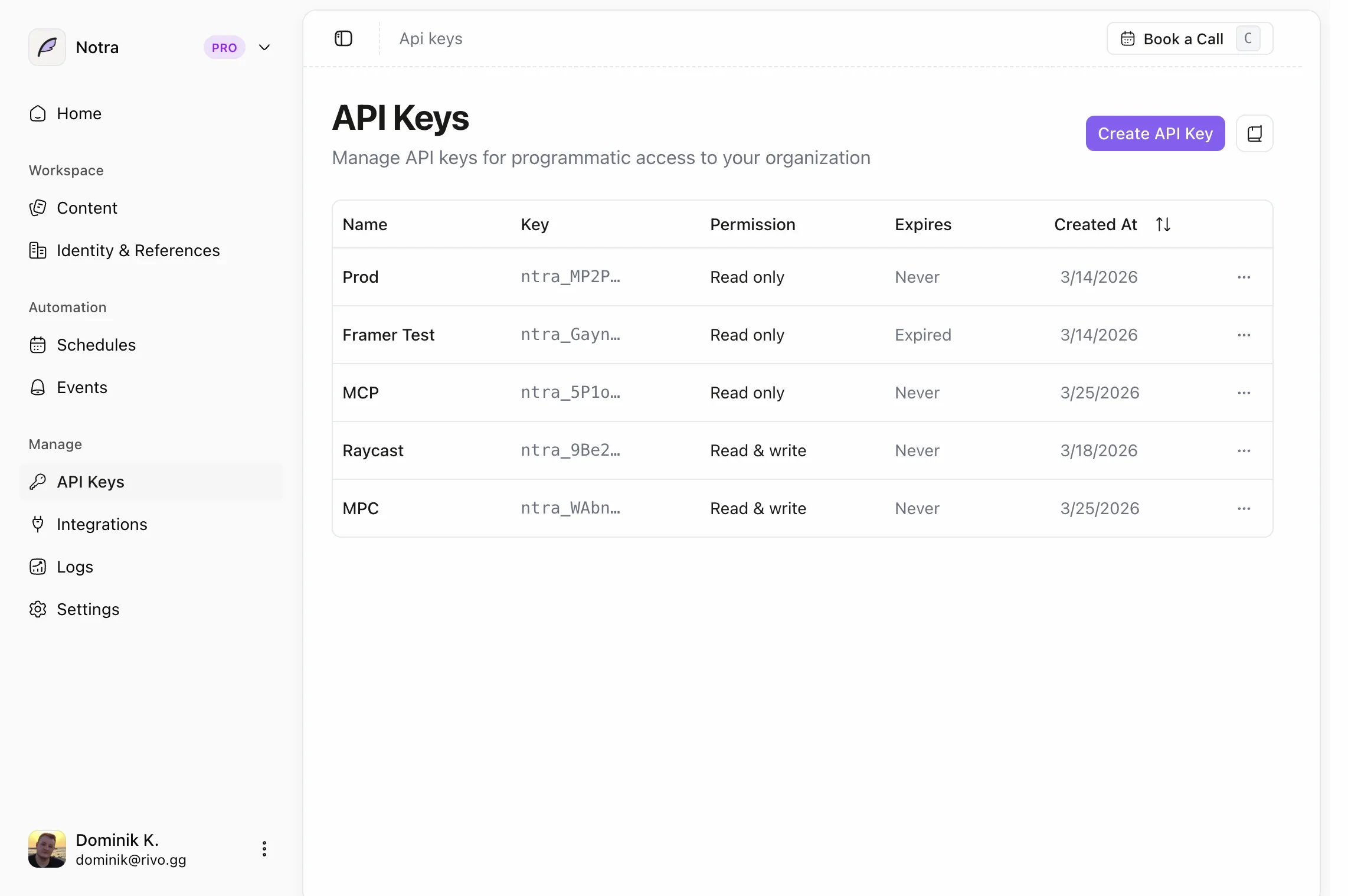
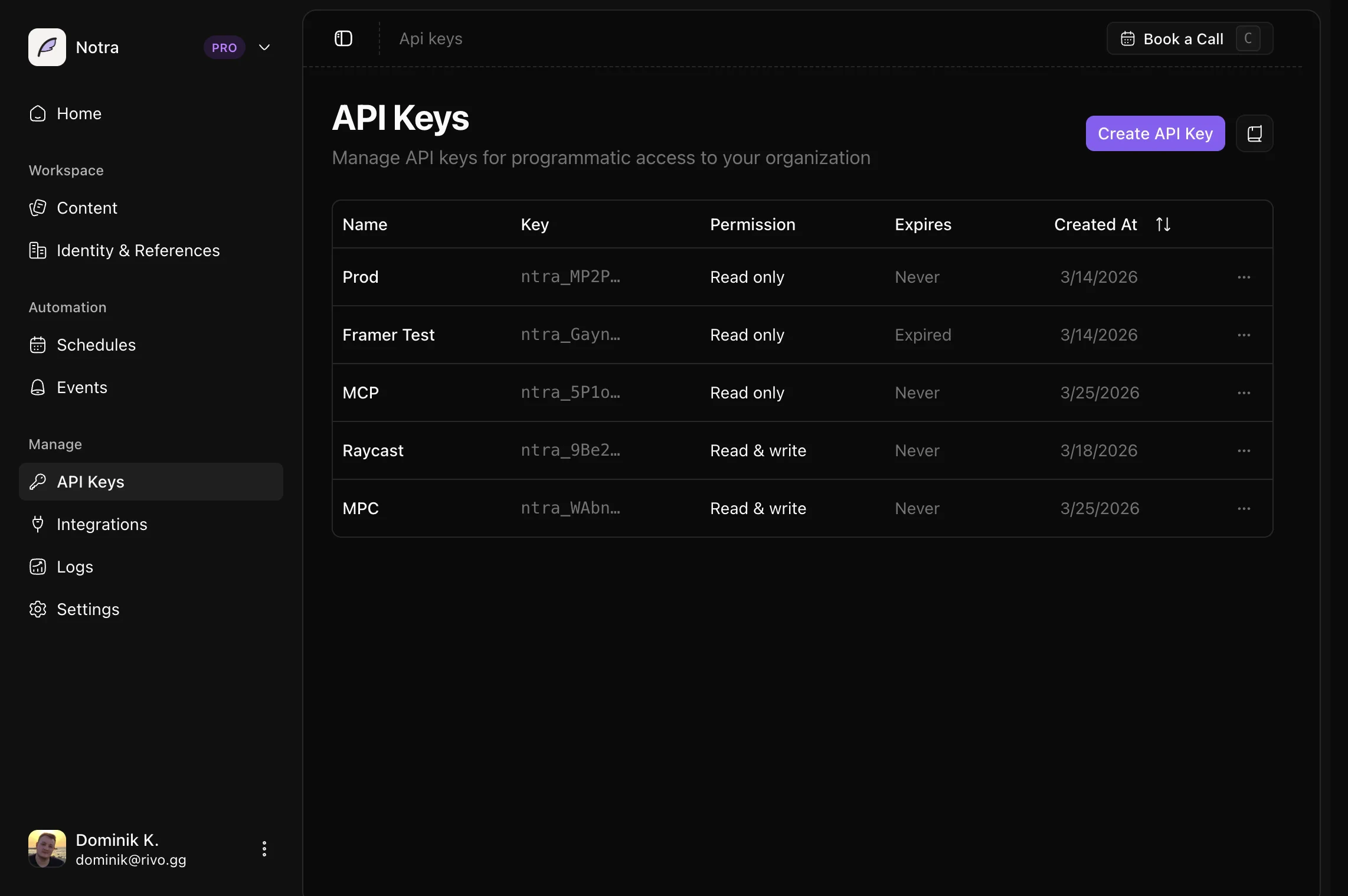
A key carries exactly the scopes you picked when you created it, and it is bound to one organization. Create and manage keys under **API Keys** in the dashboard; see [Authentication](/docs/api/authentication).
 Grant read and write access for the resources the client should manage. GEO tools need the GEO scopes (projects, GEO settings, prompts, competitors, scans, visibility, content briefs, agent readiness, AI traffic) and a plan that includes GEO.
## Connect an AI client
### With OAuth
Add the server URL without any headers. The client detects the OAuth metadata and opens the sign-in flow.
```bash Claude Code theme={"theme":{"light":"github-light","dark":"github-dark"}}
claude mcp add --transport http notra https://mcp.usenotra.com/mcp
```
```json mcp.json (Cursor) theme={"theme":{"light":"github-light","dark":"github-dark"}}
"notra": {
"url": "https://mcp.usenotra.com/mcp"
}
```
```json opencode.json theme={"theme":{"light":"github-light","dark":"github-dark"}}
"notra": {
"type": "remote",
"url": "https://mcp.usenotra.com/mcp",
"enabled": true
}
```
In ChatGPT, add a custom connector with the URL `https://mcp.usenotra.com/mcp` and complete the sign-in when prompted.
### With an API key
If your client supports [`add-mcp`](https://www.npmjs.com/package/add-mcp), install the server with a header override:
```bash theme={"theme":{"light":"github-light","dark":"github-dark"}}
npx add-mcp https://mcp.usenotra.com/mcp --header "Authorization: Bearer $NOTRA_API_KEY"
```
Or add the header to the client config by hand:
```json opencode.json theme={"theme":{"light":"github-light","dark":"github-dark"}}
"notra": {
"type": "remote",
"url": "https://mcp.usenotra.com/mcp",
"enabled": true,
"headers": {
"Authorization": "Bearer YOUR_API_KEY"
}
}
```
```json mcp.json (Cursor) theme={"theme":{"light":"github-light","dark":"github-dark"}}
"notra": {
"url": "https://mcp.usenotra.com/mcp",
"headers": {
"Authorization": "Bearer YOUR_API_KEY"
}
}
```
```json claude.json theme={"theme":{"light":"github-light","dark":"github-dark"}}
"notra": {
"type": "http",
"url": "https://mcp.usenotra.com/mcp",
"headers": {
"Authorization": "Bearer YOUR_API_KEY"
}
}
```
### Local stdio server
The same server is published on npm as [`@usenotra/mcp`](https://www.npmjs.com/package/@usenotra/mcp) for clients that only speak stdio. It needs Node.js 20 or newer and an API key in `NOTRA_API_KEY`:
```bash theme={"theme":{"light":"github-light","dark":"github-dark"}}
claude mcp add notra -- npx -y @usenotra/mcp
```
The hosted server is updated first; the npm package can lag behind it, so prefer the hosted URL when your client supports remote servers.
## Available tools
Tool names are exactly as the server registers them; some clients prefix them with the server name.
**Posts**
* `list_posts`
* `get_post`
* `update_post`
* `delete_post`
* `generate_post`
* `get_post_generation_status`
When `update_post` changes the title, slug, or markdown of a blog post or changelog with a linked GitHub pull request, Notra saves the article and updates that PR using the same publishing logic as the dashboard. It does not create a new PR. Status-only changes do not trigger a GitHub update.
If the PR update fails, the tool returns an error stating that the post was saved in Notra. A rate-limited GitHub sync returns 429 with `Retry-After`; wait before retrying the content update. A timeout returns 504 with an unknown sync outcome: the PR update may still finish, so check the PR before retrying. Check the PR after other unconfirmed sync errors as well. A closed or merged PR must be resolved in the dashboard before it can be synced again.
**Brand identities**
* `list_brand_identities`
* `get_brand_identity`
* `update_brand_identity`
* `delete_brand_identity`
* `generate_brand_identity`
* `get_brand_identity_generation_status`
**Integrations**
* `list_integrations`
* `create_github_integration`
* `delete_integration`
**Schedules**
* `list_schedules`
* `create_schedule`
* `update_schedule`
* `delete_schedule`
**Chats**
* `list_chats`
* `get_chat`
* `get_chat_by_external_channel`
* `create_chat`
* `post_chat_message`
**Skills**
* `list_skills`
* `get_skill`
* `create_skill`
* `update_skill`
* `delete_skill`
**GEO projects and settings**
* `list_projects`
* `get_project`
* `create_project`
* `update_project`
* `delete_project`
* `get_geo_settings`
* `update_geo_settings`
**GEO prompts and sequences**
* `list_geo_prompts`
* `create_geo_prompt`
* `update_geo_prompt`
* `delete_geo_prompt`
* `import_geo_prompts`
* `list_geo_sequences`
* `create_geo_sequence`
* `update_geo_sequence`
* `delete_geo_sequence`
* `run_geo_sequence`
**GEO competitors**
* `list_geo_competitors`
* `upsert_geo_competitor`
* `suggest_geo_competitors`
* `delete_geo_competitor`
* `import_geo_competitors`
**GEO scans and visibility**
* `create_geo_scan`
* `list_geo_scans`
* `get_geo_scan`
* `get_geo_visibility_overview`
* `get_geo_visibility_timeseries`
* `get_geo_prompt_results`
* `get_geo_competitor_share`
* `get_geo_language_share`
* `get_geo_competitor_detail`
**GEO content gaps and briefs**
* `list_geo_content_gaps`
* `list_geo_content_briefs`
* `plan_geo_content_brief`
* `get_geo_content_brief`
* `approve_geo_content_brief`
**Agent readiness**
* `get_geo_agent_readiness`
* `start_geo_agent_readiness_scan`
**AI traffic**
* `get_geo_traffic_overview`
* `get_geo_traffic_log`
* `list_geo_traffic_journeys`
* `get_geo_traffic_journey`
* `list_geo_traffic_pages`
* `get_geo_ingest_setup`
* `issue_geo_ingest_token`
* `rotate_geo_ingest_token`
**Feedback**
* `submit_feedback` sends a bug report, feature request, question, or praise to the Notra team. It needs no credentials. See [Agent feedback](/docs/api/agent-feedback).
`create_geo_scan`, `run_geo_sequence`, and `plan_geo_content_brief` use billed AI credits and can take minutes. The server instructs agents to confirm with you before starting them.
## Connect external MCP servers to Notra
This is the reverse direction: Notra's chat agent can use tools from MCP servers you run or subscribe to. Open **Integrations > MCP Servers** in the dashboard (or press `C` on that page) and add a server.
Give it a name, the server URL (for example `mcp.example.com/mcp`), and a short description of what tools or context Notra should use it for. The description helps the agent decide when to reach for the server.
Pick one of three options:
* **None** for public servers without credentials.
* **API key** to send one or more custom headers, such as `Authorization: Bearer ...`.
* **OAuth** to sign in with the server's own OAuth flow. Notra opens the authorization page in a popup.
Notra tests the connection before saving and reports whether it could reach the server. With OAuth, the button reads **Connect & Authorize** and the server is saved once authorization completes.
After saving, Notra indexes the server's tools and shows the tool count on the server card. From the card you can refresh the tool index, enable or disable the server, reauthorize an expired OAuth grant, or delete it. Indexed tools are available to the Notra chat agent, which searches the index and activates the tools it needs for a conversation.
## Composio
If you want to use the Notra MCP server through [Composio](https://composio.dev/), upvote the request at [request.composio.dev/boards/tool-requests/posts/notra](https://request.composio.dev/boards/tool-requests/posts/notra). That helps the Composio team see demand for a Notra integration.
## Notes
* Prefer OAuth for personal clients so tokens rotate and can be revoked per session.
* Keep API keys in a server-side or local secret store; do not commit MCP config files that contain live bearer tokens.
* Revoke and replace a key immediately if it is exposed.
This documentation is built and hosted on [Mintlify](https://mintlify.com), a developer documentation platform.
Grant read and write access for the resources the client should manage. GEO tools need the GEO scopes (projects, GEO settings, prompts, competitors, scans, visibility, content briefs, agent readiness, AI traffic) and a plan that includes GEO.
## Connect an AI client
### With OAuth
Add the server URL without any headers. The client detects the OAuth metadata and opens the sign-in flow.
```bash Claude Code theme={"theme":{"light":"github-light","dark":"github-dark"}}
claude mcp add --transport http notra https://mcp.usenotra.com/mcp
```
```json mcp.json (Cursor) theme={"theme":{"light":"github-light","dark":"github-dark"}}
"notra": {
"url": "https://mcp.usenotra.com/mcp"
}
```
```json opencode.json theme={"theme":{"light":"github-light","dark":"github-dark"}}
"notra": {
"type": "remote",
"url": "https://mcp.usenotra.com/mcp",
"enabled": true
}
```
In ChatGPT, add a custom connector with the URL `https://mcp.usenotra.com/mcp` and complete the sign-in when prompted.
### With an API key
If your client supports [`add-mcp`](https://www.npmjs.com/package/add-mcp), install the server with a header override:
```bash theme={"theme":{"light":"github-light","dark":"github-dark"}}
npx add-mcp https://mcp.usenotra.com/mcp --header "Authorization: Bearer $NOTRA_API_KEY"
```
Or add the header to the client config by hand:
```json opencode.json theme={"theme":{"light":"github-light","dark":"github-dark"}}
"notra": {
"type": "remote",
"url": "https://mcp.usenotra.com/mcp",
"enabled": true,
"headers": {
"Authorization": "Bearer YOUR_API_KEY"
}
}
```
```json mcp.json (Cursor) theme={"theme":{"light":"github-light","dark":"github-dark"}}
"notra": {
"url": "https://mcp.usenotra.com/mcp",
"headers": {
"Authorization": "Bearer YOUR_API_KEY"
}
}
```
```json claude.json theme={"theme":{"light":"github-light","dark":"github-dark"}}
"notra": {
"type": "http",
"url": "https://mcp.usenotra.com/mcp",
"headers": {
"Authorization": "Bearer YOUR_API_KEY"
}
}
```
### Local stdio server
The same server is published on npm as [`@usenotra/mcp`](https://www.npmjs.com/package/@usenotra/mcp) for clients that only speak stdio. It needs Node.js 20 or newer and an API key in `NOTRA_API_KEY`:
```bash theme={"theme":{"light":"github-light","dark":"github-dark"}}
claude mcp add notra -- npx -y @usenotra/mcp
```
The hosted server is updated first; the npm package can lag behind it, so prefer the hosted URL when your client supports remote servers.
## Available tools
Tool names are exactly as the server registers them; some clients prefix them with the server name.
**Posts**
* `list_posts`
* `get_post`
* `update_post`
* `delete_post`
* `generate_post`
* `get_post_generation_status`
When `update_post` changes the title, slug, or markdown of a blog post or changelog with a linked GitHub pull request, Notra saves the article and updates that PR using the same publishing logic as the dashboard. It does not create a new PR. Status-only changes do not trigger a GitHub update.
If the PR update fails, the tool returns an error stating that the post was saved in Notra. A rate-limited GitHub sync returns 429 with `Retry-After`; wait before retrying the content update. A timeout returns 504 with an unknown sync outcome: the PR update may still finish, so check the PR before retrying. Check the PR after other unconfirmed sync errors as well. A closed or merged PR must be resolved in the dashboard before it can be synced again.
**Brand identities**
* `list_brand_identities`
* `get_brand_identity`
* `update_brand_identity`
* `delete_brand_identity`
* `generate_brand_identity`
* `get_brand_identity_generation_status`
**Integrations**
* `list_integrations`
* `create_github_integration`
* `delete_integration`
**Schedules**
* `list_schedules`
* `create_schedule`
* `update_schedule`
* `delete_schedule`
**Chats**
* `list_chats`
* `get_chat`
* `get_chat_by_external_channel`
* `create_chat`
* `post_chat_message`
**Skills**
* `list_skills`
* `get_skill`
* `create_skill`
* `update_skill`
* `delete_skill`
**GEO projects and settings**
* `list_projects`
* `get_project`
* `create_project`
* `update_project`
* `delete_project`
* `get_geo_settings`
* `update_geo_settings`
**GEO prompts and sequences**
* `list_geo_prompts`
* `create_geo_prompt`
* `update_geo_prompt`
* `delete_geo_prompt`
* `import_geo_prompts`
* `list_geo_sequences`
* `create_geo_sequence`
* `update_geo_sequence`
* `delete_geo_sequence`
* `run_geo_sequence`
**GEO competitors**
* `list_geo_competitors`
* `upsert_geo_competitor`
* `suggest_geo_competitors`
* `delete_geo_competitor`
* `import_geo_competitors`
**GEO scans and visibility**
* `create_geo_scan`
* `list_geo_scans`
* `get_geo_scan`
* `get_geo_visibility_overview`
* `get_geo_visibility_timeseries`
* `get_geo_prompt_results`
* `get_geo_competitor_share`
* `get_geo_language_share`
* `get_geo_competitor_detail`
**GEO content gaps and briefs**
* `list_geo_content_gaps`
* `list_geo_content_briefs`
* `plan_geo_content_brief`
* `get_geo_content_brief`
* `approve_geo_content_brief`
**Agent readiness**
* `get_geo_agent_readiness`
* `start_geo_agent_readiness_scan`
**AI traffic**
* `get_geo_traffic_overview`
* `get_geo_traffic_log`
* `list_geo_traffic_journeys`
* `get_geo_traffic_journey`
* `list_geo_traffic_pages`
* `get_geo_ingest_setup`
* `issue_geo_ingest_token`
* `rotate_geo_ingest_token`
**Feedback**
* `submit_feedback` sends a bug report, feature request, question, or praise to the Notra team. It needs no credentials. See [Agent feedback](/docs/api/agent-feedback).
`create_geo_scan`, `run_geo_sequence`, and `plan_geo_content_brief` use billed AI credits and can take minutes. The server instructs agents to confirm with you before starting them.
## Connect external MCP servers to Notra
This is the reverse direction: Notra's chat agent can use tools from MCP servers you run or subscribe to. Open **Integrations > MCP Servers** in the dashboard (or press `C` on that page) and add a server.
Give it a name, the server URL (for example `mcp.example.com/mcp`), and a short description of what tools or context Notra should use it for. The description helps the agent decide when to reach for the server.
Pick one of three options:
* **None** for public servers without credentials.
* **API key** to send one or more custom headers, such as `Authorization: Bearer ...`.
* **OAuth** to sign in with the server's own OAuth flow. Notra opens the authorization page in a popup.
Notra tests the connection before saving and reports whether it could reach the server. With OAuth, the button reads **Connect & Authorize** and the server is saved once authorization completes.
After saving, Notra indexes the server's tools and shows the tool count on the server card. From the card you can refresh the tool index, enable or disable the server, reauthorize an expired OAuth grant, or delete it. Indexed tools are available to the Notra chat agent, which searches the index and activates the tools it needs for a conversation.
## Composio
If you want to use the Notra MCP server through [Composio](https://composio.dev/), upvote the request at [request.composio.dev/boards/tool-requests/posts/notra](https://request.composio.dev/boards/tool-requests/posts/notra). That helps the Composio team see demand for a Notra integration.
## Notes
* Prefer OAuth for personal clients so tokens rotate and can be revoked per session.
* Keep API keys in a server-side or local secret store; do not commit MCP config files that contain live bearer tokens.
* Revoke and replace a key immediately if it is exposed.
This documentation is built and hosted on [Mintlify](https://mintlify.com), a developer documentation platform.