

View in ChatGPT
Install the Notra plugin in your ChatGPT account.
Setup
1
Open Notra's plugin page
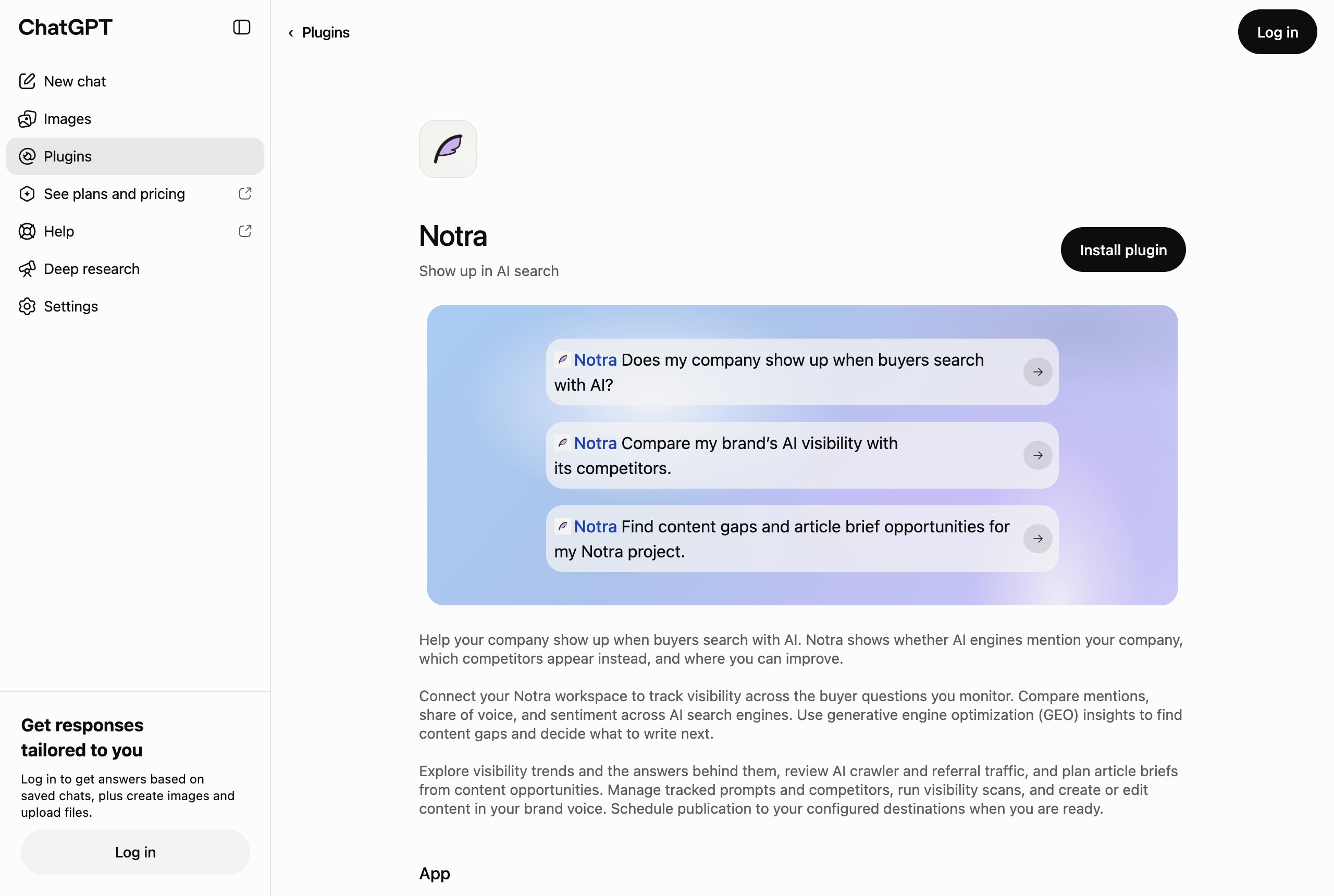
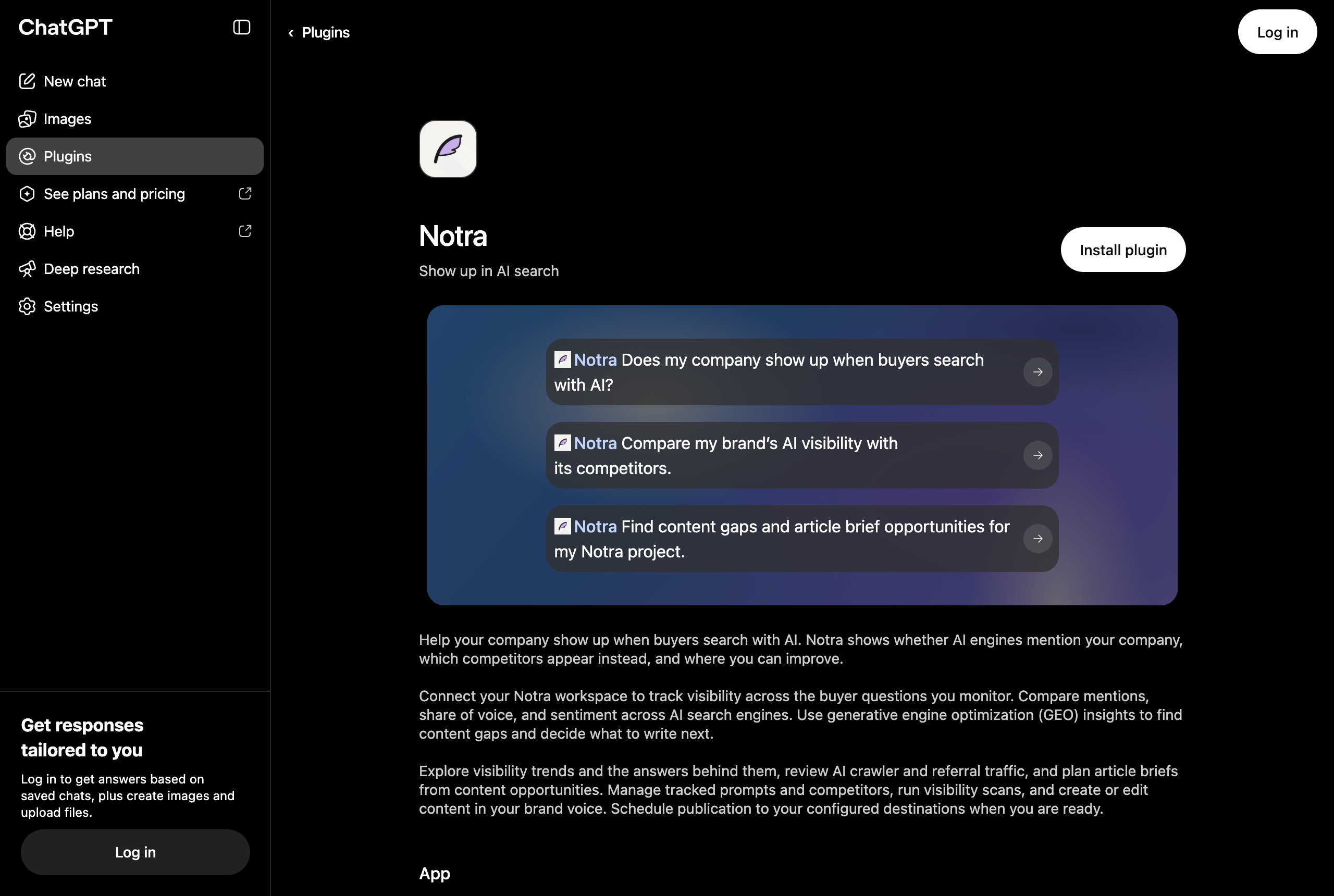
Open Notra’s plugin page in ChatGPT and click Install plugin.
2
Sign in to Notra
ChatGPT sends you to Notra to sign in, where you pick the organization you want to use and an access level of Read only, Write only or Full access.
3
Start using Notra in ChatGPT
ChatGPT stores the session and refreshes it in the background, so you only sign in once. Ask ChatGPT about your AI visibility or ask it to draft content, and it calls the Notra tools for you.
https://mcp.usenotra.com/mcp as a custom connector, as described on the MCP server page.
What you can do
The plugin has the same tools as the MCP server, which covers GEO, AEO and content. Here are a few prompts to start with:- “Run a GEO scan for our tracked prompts and tell me where we dropped since last week.”
- “Which competitors show up in AI answers for prompts where we don’t?”
- “Find our biggest content gaps and draft a blog post for the first one in our brand voice.”
- “How much traffic did AI crawlers and agents send to our docs this month?”
Notes
- The access level you pick when you sign in limits what ChatGPT can do, so pick Read only if you only want ChatGPT to report on your data.
- You can disconnect Notra from your ChatGPT settings at any time, and you sign in again the next time you connect it.