

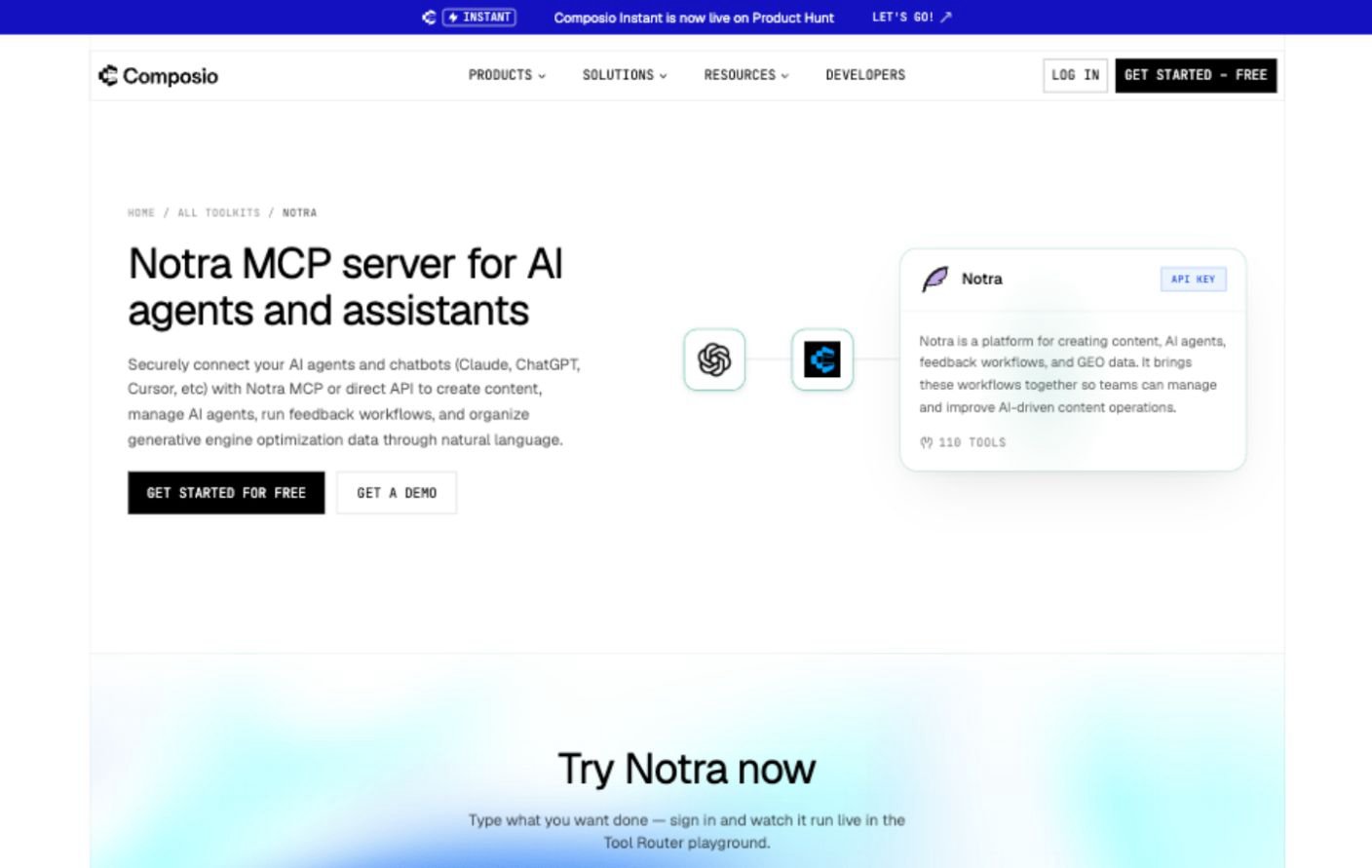
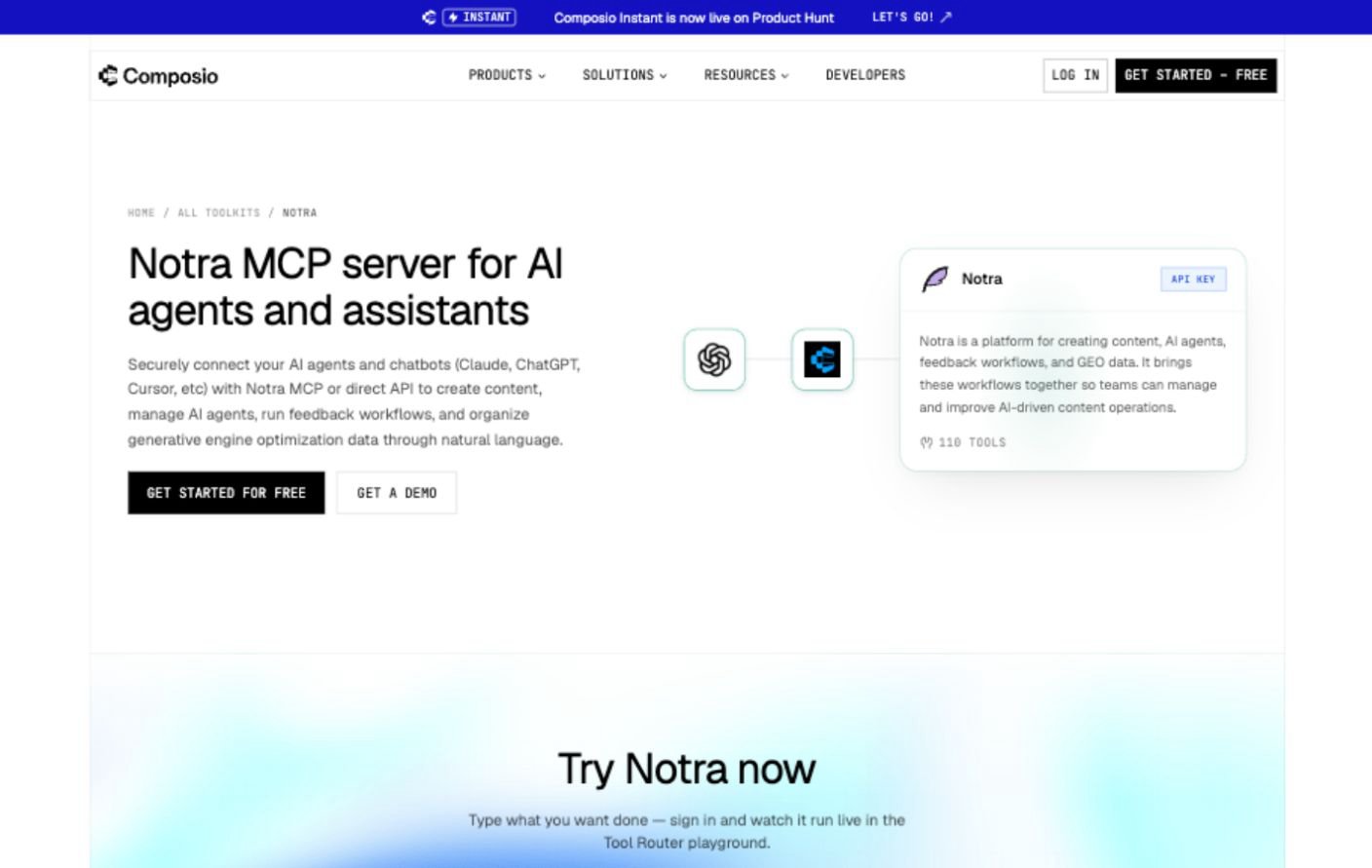
View on Composio
Open the Notra toolkit in the Composio catalog.
Setup
1
Create an API key
Open API Keys in your dashboard and create a key with read and write permissions for the resources your agent should use, then copy it.See Authentication for details on creating and managing keys.
2
Connect Notra in Composio
Open the Notra connection page in Composio and paste your API key. Composio encrypts and stores the key for you.
3
Use the toolkit from your agent
Either create a Composio session scoped to Notra with MCP enabled and pass its MCP URL to your client, or call the Notra tools directly through the Composio SDK from your own agent loop. The toolkit page has TypeScript examples for both.
What you can do
The toolkit has 110 tools, and most of them cover the GEO and AEO workflow. Your agent can run scans against your tracked prompts, compare your share of voice and sentiment with competitors, find content gaps, plan and approve content briefs and report how much traffic AI crawlers and agents send to your site. When a brief is ready, it can draft the post in your brand voice and schedule it in Notra. Here are a few prompts to start with:- “Run a GEO scan for our tracked prompts and tell me where we dropped since last week.”
- “Which competitors show up in AI answers for prompts where we don’t?”
- “Find our biggest AEO content gaps and draft a blog post for the first one in our brand voice.”
- “How much traffic did AI crawlers and agents send to our docs this month?”
Notes
- The API key carries exactly the permissions you picked when you created it, so grant read-only permissions if your agent only reports on your data.
- Revoke the key in Notra to cut off Composio’s access immediately, and create a new key if it is ever exposed.