

The templates
Templates come in three groups. In the table, Hands you says what you get to review. A post is a new page in your blog folder, and a pull request edits pages or files you already have.
Every automation that is on is checked in every daily run. Once a week and When AI citations drop describe when they act: internal links wait seven days between pull requests, refreshes act only when a page lost AI citations or a post Autopilot wrote didn’t move the number, and landing page updates act only when a page lost citations or ranks 4 to 20 in Google.
Autopilot also runs two small jobs that don’t open pull requests. Prompt cleanup looks for tracked prompts where, over the last 30 days (with at least 3 scans and 6 answers), no answer named you or a tracked competitor. Those prompts dilute your visibility numbers, so it suggests pausing up to five per run on the Prompts page, under “Autopilot suggests” with Pause and Keep. You can turn this off under Settings → Housekeeping → Suggest pausing dead prompts. The competitors job adds a line to the brief naming the competitors that win the prompts you lose most.
Turn a template on or off
The Automations tab lists the templates you haven’t added under Templates. Press Browse templates to see all of them by group, and press a card to read what it does before you add it.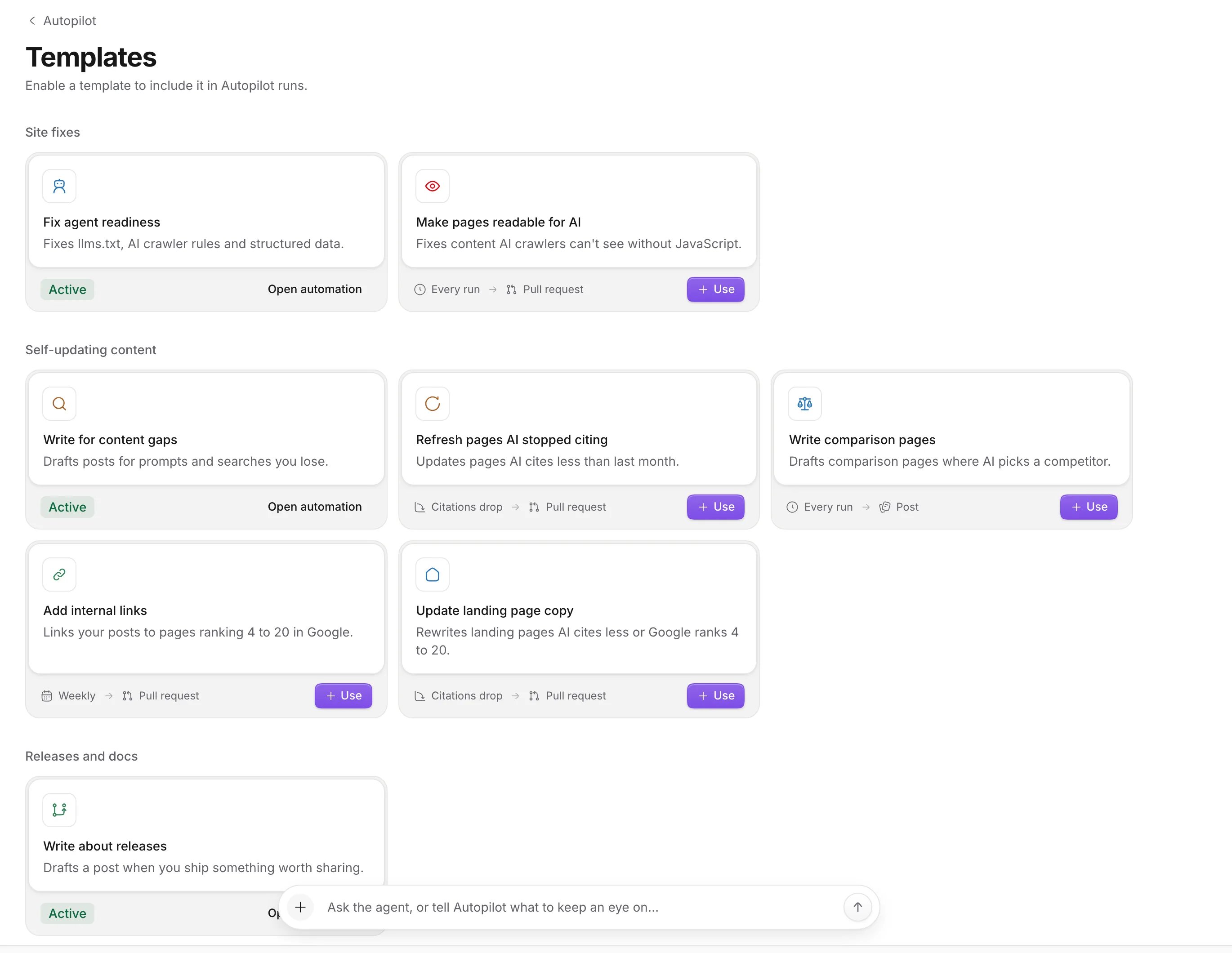
Run one automation now
Press Run on an automation’s row, Run now on its page, or right-click the row and pick Run now. Only that automation runs (“Write for content gaps is running now”), and the daily schedule stays as it is. The automation still follows its limits, so it skips when the open pull request limit is full and, for every automation except content gaps and releases, when its last pull request is still waiting for review.Read what an automation did
Open an automation from the table to see its page.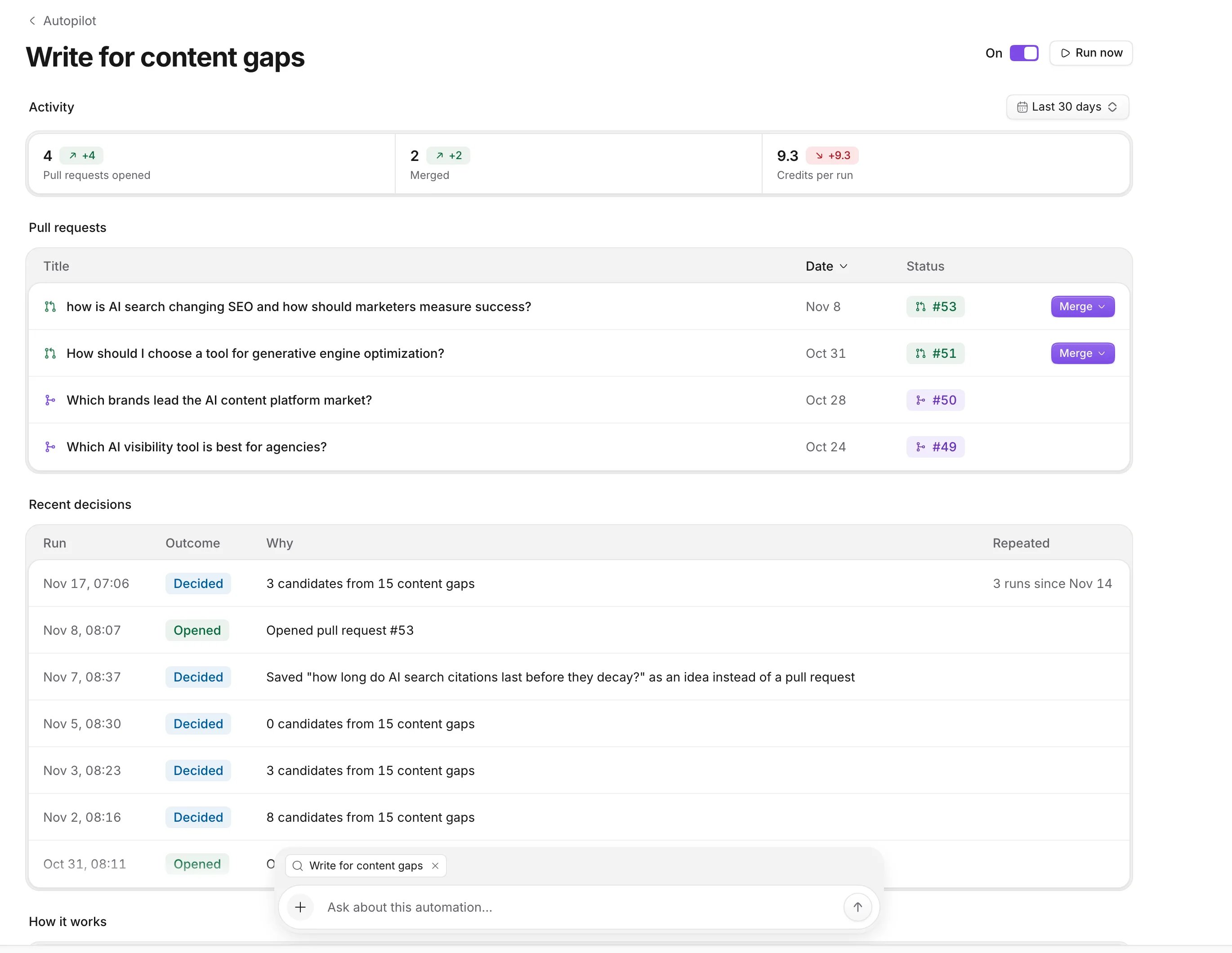
What every automation has in common
Every automation needs a website repository, or a Notra Site with a blog, and skips with “No website repository connected” without one. Fix, update and comparison automations open one pull request at a time and wait until it’s merged or closed. Content gaps and releases can have several open, one per topic. What they open on their own counts toward the limit of three open Autopilot pull requests, and you’re only charged when one opens (see Limits and credits). When an automation has nothing to do, the run log says why.Site fixes
Agent readiness and AI-readable pages.
Self-updating content
Gaps, refreshes, comparisons, links and landing copy.
Releases
Posts about what you ship.