

Build a workflow
1
Describe what to watch
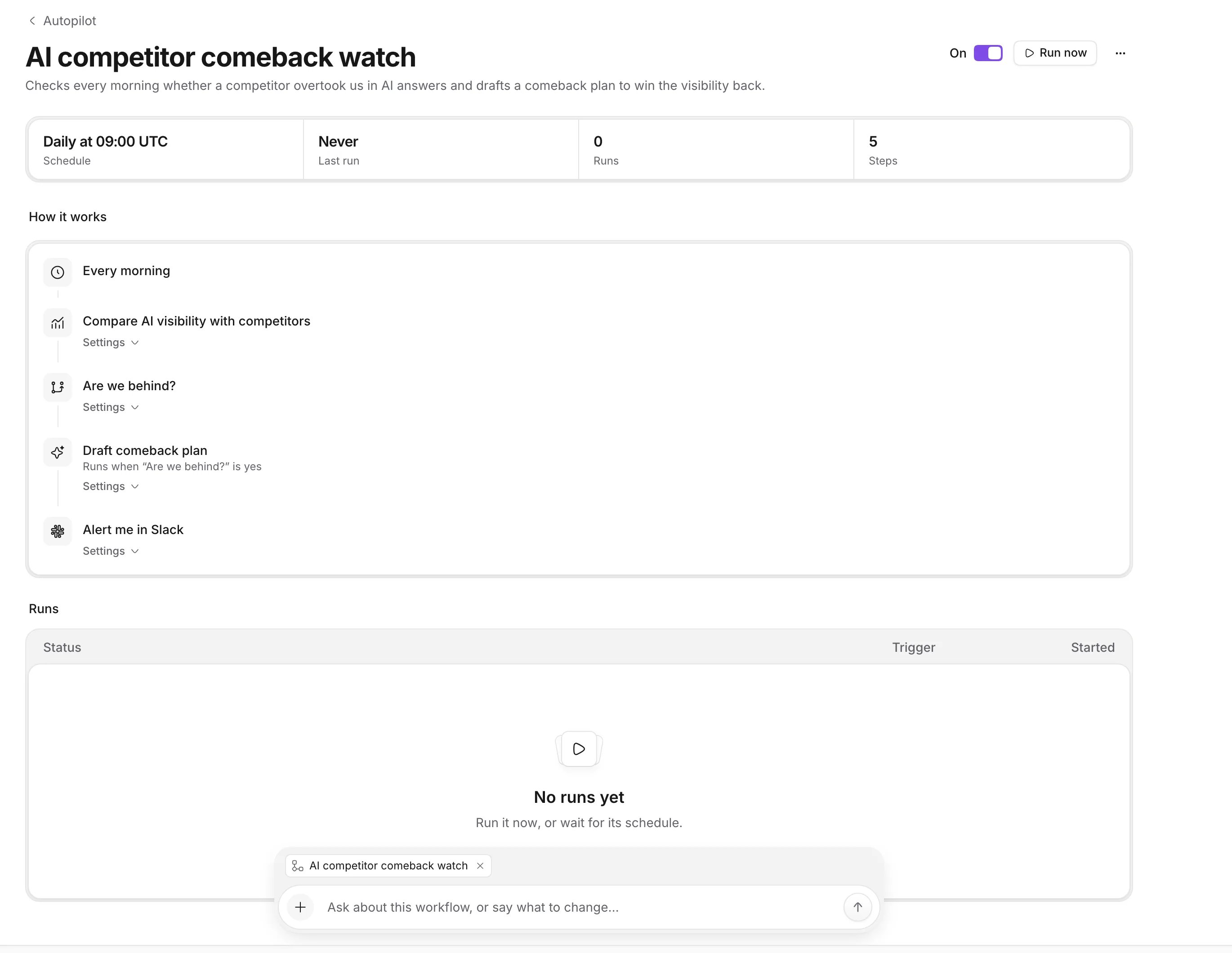
Type into the agent dock at the bottom of the Autopilot page, for example “Every morning, check whether a competitor got more AI mentions than us yesterday. If so, plan what we should publish and post it to Slack.” You can also pick Add automation → Describe your own, or start from a suggestion like Watch competitors, Weekly visibility digest or Plan a comeback.
2
Answer the agent's questions
When something changes the workflow and the agent can’t look it up, like which competitor to watch or how often to check, it asks before building. Each question comes with two to four likely answers.
3
Approve the workflow
The agent shows the workflow step by step. Nothing is saved until you approve it, and you can tell the agent what to change instead.
4
Run it
The agent offers to run it now, which you approve too. After that it runs on its schedule.
The steps
A workflow can only post to the notifications channel and can’t send email. Most workflows have three to six steps.
Manage workflows
Workflows appear in the automations table on the Automations tab, next to the built-in automations. Each one has a page with its schedule, last run, steps and past runs. The On switch there turns the schedule on or off, and a workflow that is off shows Paused in the table. Run now runs it once right away. Right-click a workflow’s row to open, run, pause or resume it, or to delete it for good. Only owners and admins can create, change, run or delete workflows. Members can ask the agent about them. A workspace can have up to 50 workflows, and a run that stops responding is ended after two hours.What workflows cost
Ask the agent and Let the agent decide use AI credits each time they run. Without credits, the step fails and the run stops there, so later steps don’t run (“The workspace is out of AI credits, so the agent didn’t run”). Scan a prompt starts a real scan, like a rescan on the GEO pages. The other steps are free.Ideas to start with
A competitor watch compares visibility every morning. When a competitor is ahead, it asks the agent for a comeback plan and posts it to Slack. A weekly digest does the same comparison over seven days every Monday and posts a summary with next steps. To guard your most valuable prompt, scan it every morning, let the agent decide whether you dropped out of the answers, and post to Slack only when you did. After a launch, scan the prompt about the new feature daily and post how often engines mention it, then pause the workflow once the number settles.Related
Control Autopilot from Slack
Turn workflows on or off and run them from Slack.
Prompts
Track the prompts your workflows scan.