

Before you start
Autopilot works from the data Notra already has, so each connection gives more automations something to act on.Turn on Autopilot
1
Open Autopilot
Switch the sidebar to Studio, open Autopilot and press Get started. The first step shows what Autopilot does: it runs once a day at your time, opens draft pull requests with fixes and new posts, and sends a daily brief.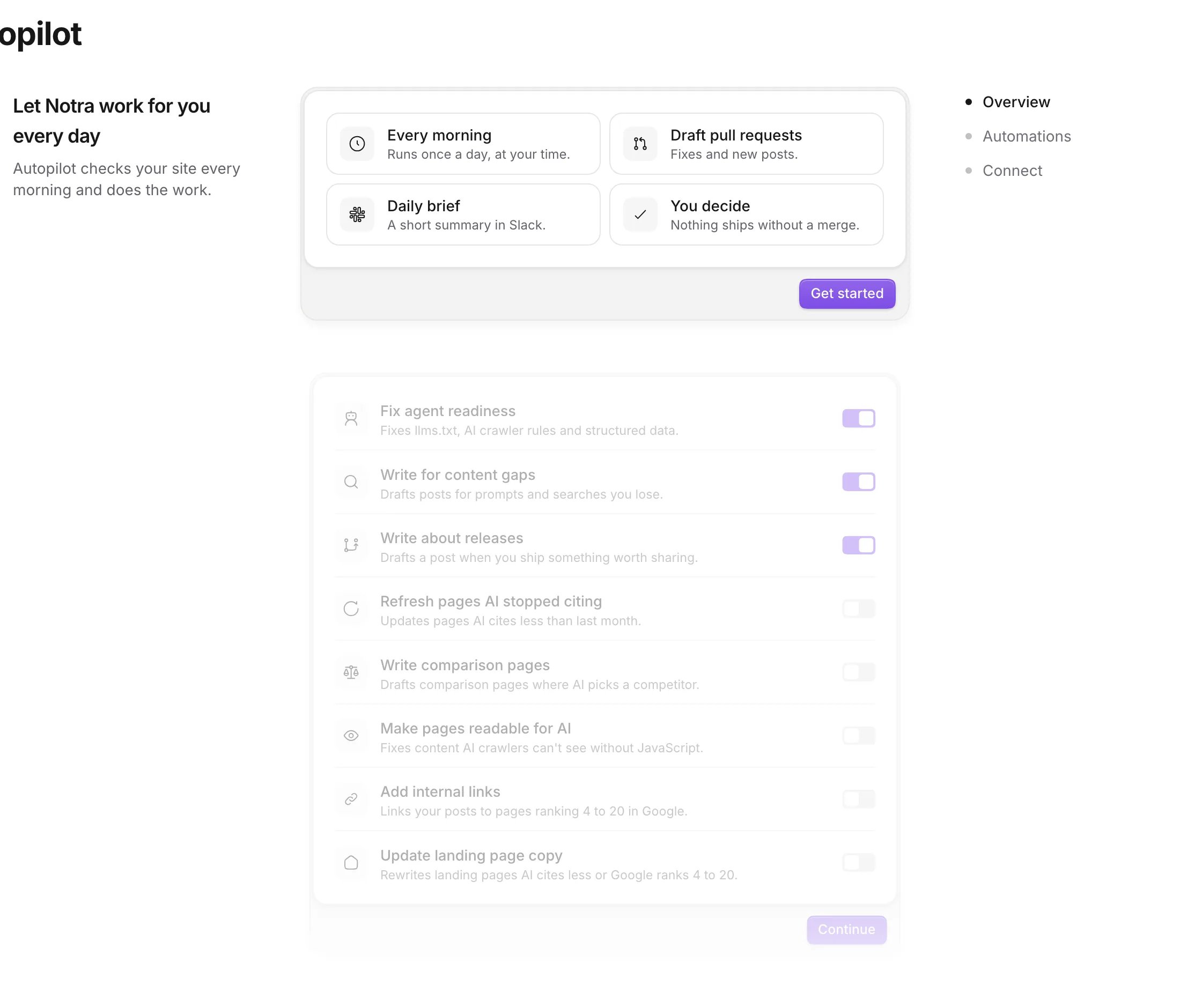
2
Pick the automations
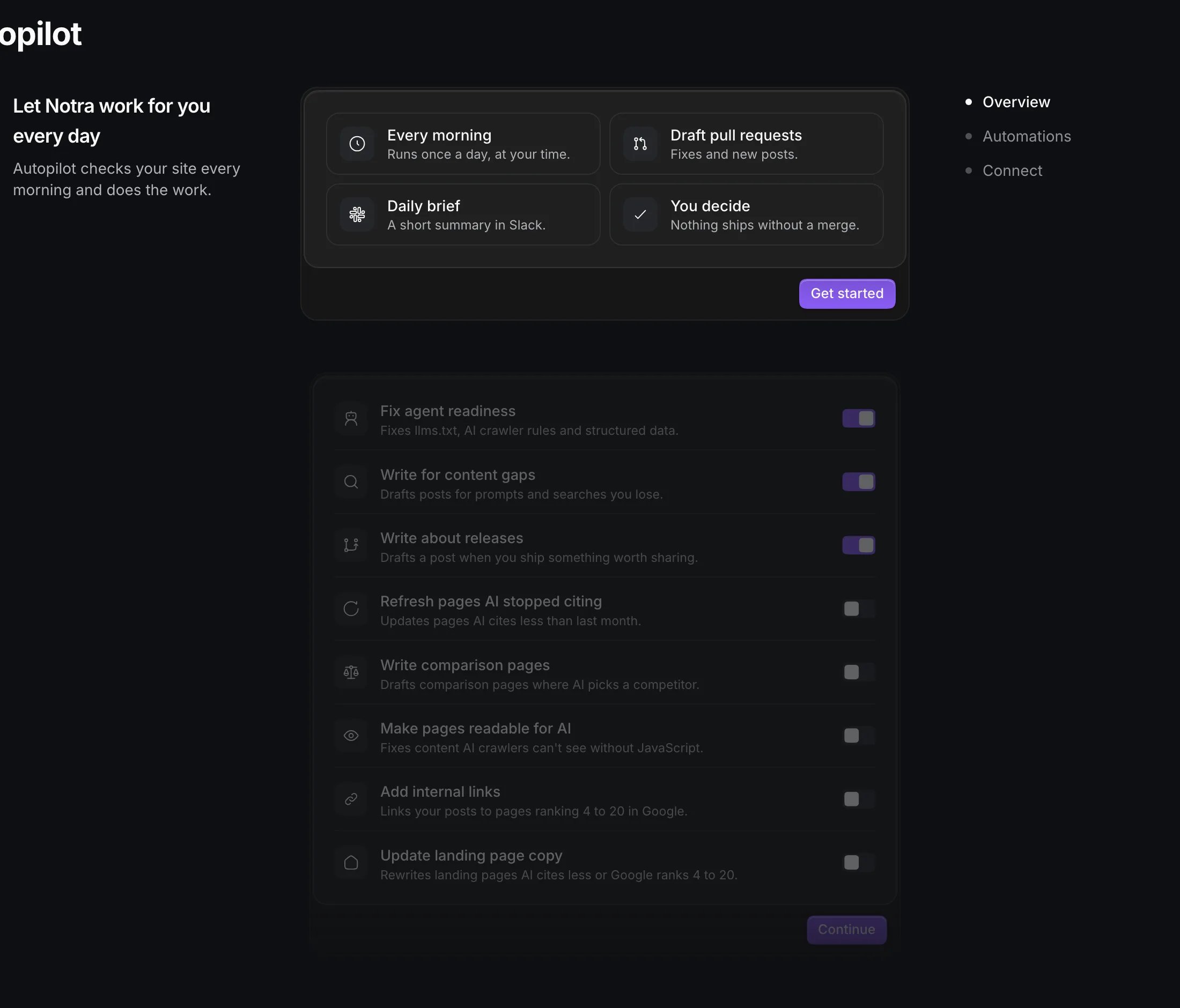
All eight automations are on. Switch off the ones you don’t want yet and press Continue. You can turn any of them on or off later from the templates. If you’re unsure, see Grow with Autopilot for a setup per goal.
3
Connect your repository and Slack
Pick the website repository, the repository your site is built from. Autopilot opens its draft pull requests there, on the repository’s default branch. Without GitHub, press Connect GitHub to install the Notra GitHub App first.Under Slack channel, pick the channel for the daily brief or choose Create a channel (the default name is 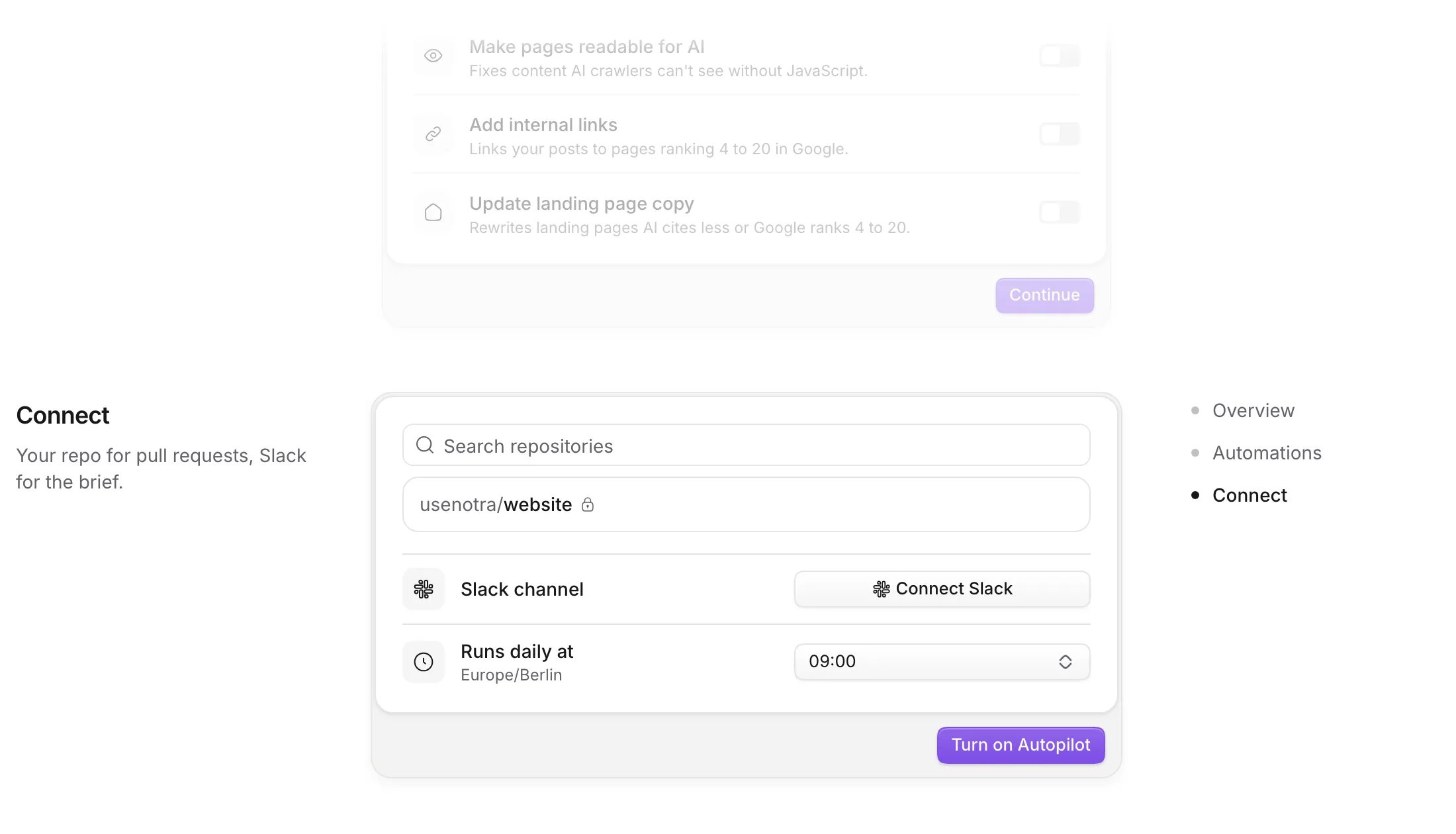
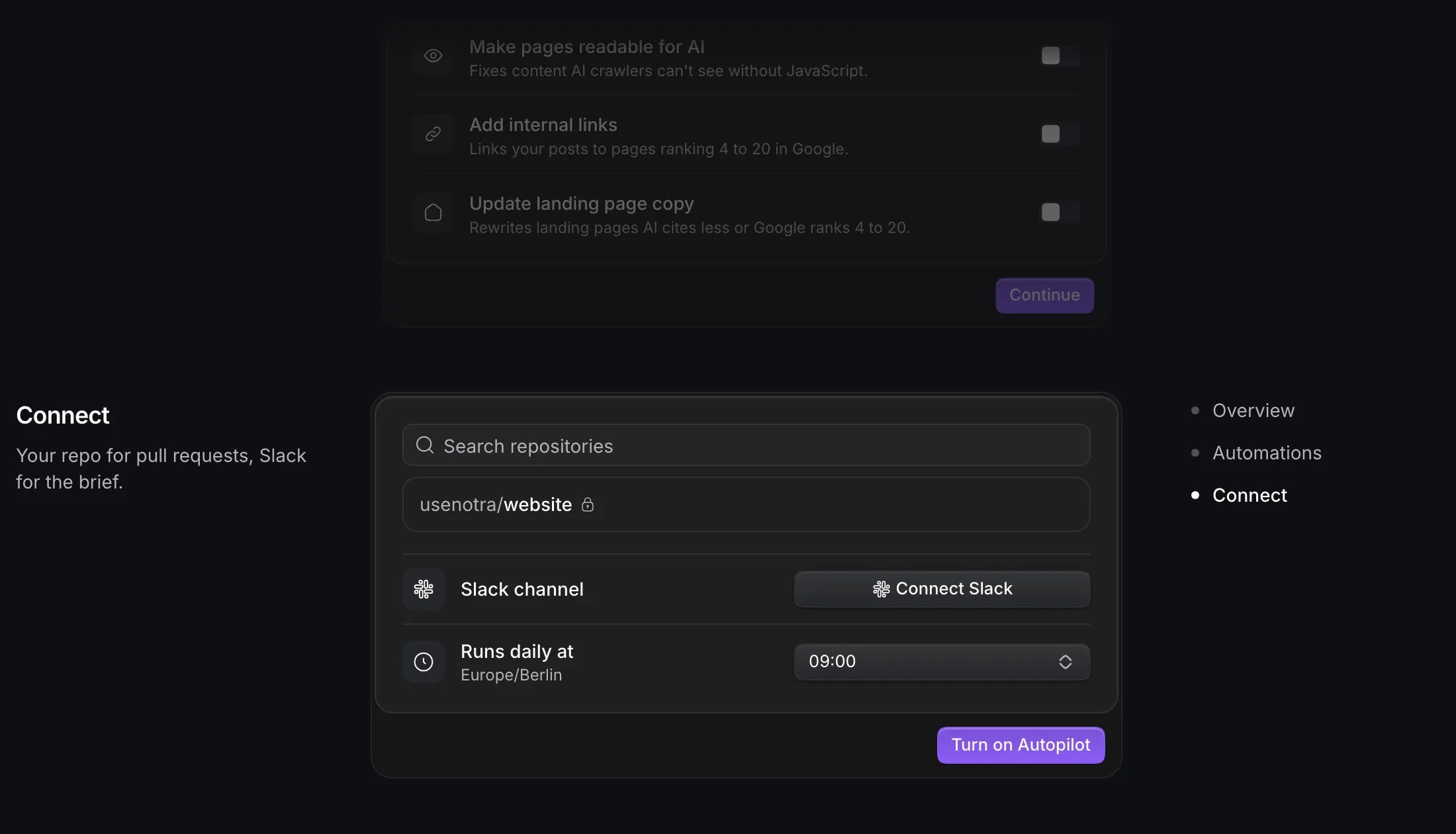
notra-autopilot). Invite the Notra app to an existing channel so it can post there. Without Slack, press Connect Slack, or skip it.Under Runs daily at, pick the hour. Your browser’s timezone is shown under it and saved with the hour.4
Turn on Autopilot
Press Turn on Autopilot. The first run starts right away (“Autopilot is checking your site now”), and the page switches to the Automations tab. Open the run from Analytics → Recent runs to watch each automation work.
Defaults from setup
Setup picks a few defaults. Check them in Settings if they don’t fit. Approvals start on Auto for new posts, page updates and readiness fixes. The first pull request of each group still waits for a person to merge it. After that, Autopilot marks later pull requests of the group ready and publishes them at 09:00 on the first weekday at least 24 hours away, unless someone steps in. If you want to merge everything yourself, set the groups to Ask. See Approvals. Autopilot looks for your blog folder in places likecontent/blog, src/content/blog, posts or _posts, also under apps/* and packages/*. If your posts live somewhere else, set Settings → Publishing → Blog folder. Release posts read your five most recently pushed repositories until you pick some under Read from, and drafts nobody touches close after 14 days (Settings → Housekeeping).
Autopilot works with the GEO project that was active during setup, or the workspace’s first project, and writes with that project’s brand identity.
After the first run
What the first run opens depends on your data. If the readiness scan found something your repository can fix, expect a readiness fix. If a content gap has enough evidence, expect a post or an idea. Autopilot keeps at most three of its pull requests open at a time, and an automation that did nothing says why in the run log.Review the first pull request
Read the post, ask for changes and merge it.
Read the daily brief
What the brief contains and how to act on it.
How a run works
Why Autopilot opened what it opened, and what it waits for.
Troubleshooting
The run opened nothing, or the brief didn’t arrive.